Border Options

While working in the "Create Image Set" and "Create Custom Form" workspaces, you can add borders to images and text boxes to make them stand out.
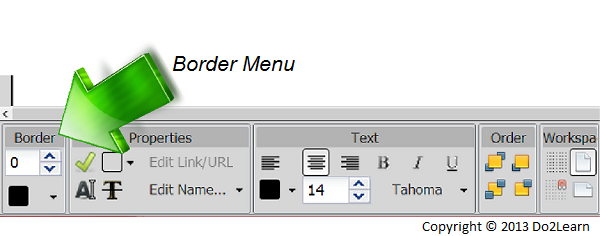
- First, locate the Border Menu at the bottom of your workspace.
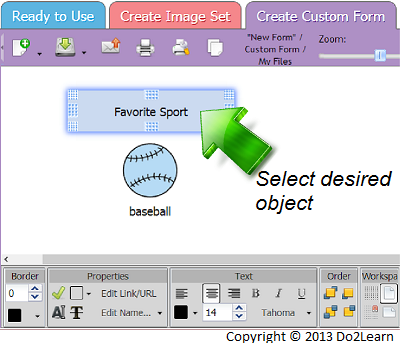
- Select the desired text box or image. Make sure it is highlighted before using the Border Menu options.
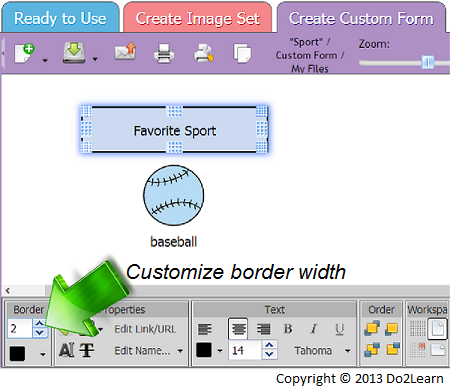
- To customize the border width, use the up and down arrows in the Border Menu.
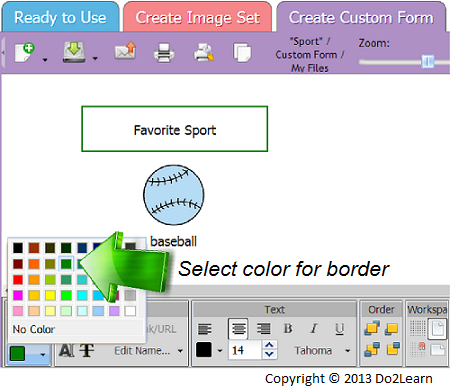
- You can also change the color of the border. Click the color button and choose the desired color from the popup menu.